GUI (Graphical User Interface)
Overview
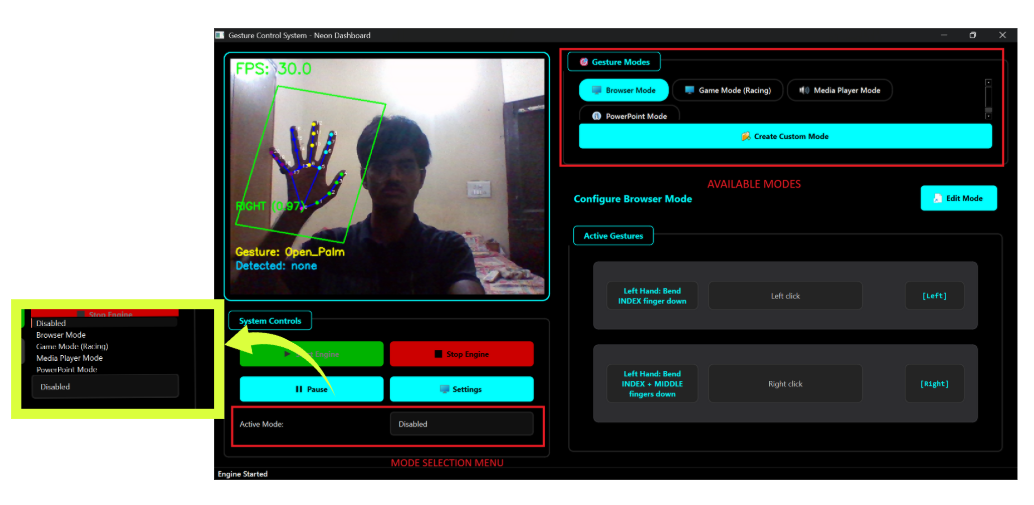
The Gesture Control System GUI provides an intuitive interface for users to configure, monitor, and control the gesture recognition system. It serves as the main interaction point between users and the underlying gesture processing pipeline.
Main Features
Real-time Display
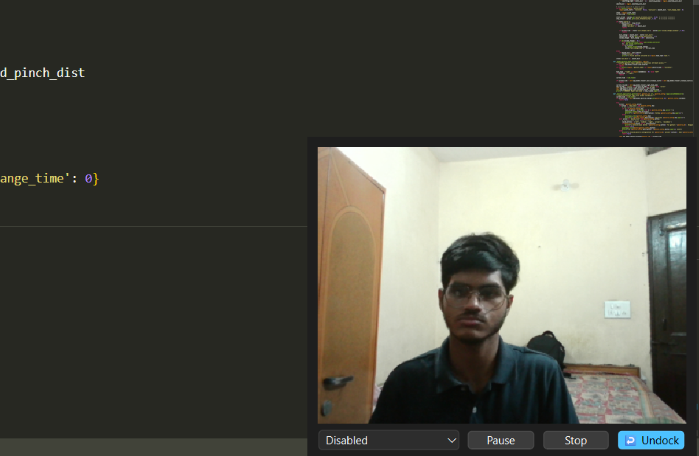
- Camera Feed: Live video stream with gesture overlay
- Landmark Visualization: Hand keypoints and connections
- Gesture Status: Current detected gestures and confidence
- Performance Metrics: FPS, latency, and system load
Configuration Panel
- Model Settings: Configure detection and recognition parameters
- Gesture Mapping: Assign actions to recognized gestures
- Calibration Tools: Camera and user-specific adjustments
- Profile Management: Save and load user configurations
Interface Components
The GUI runs the gesture engine inside a background worker thread and communicates with it using Qt signals. The project includes a small worker implementation (GestureEngineWorker) which encapsulates the engine lifecycle and emits updates for the GUI to consume.
GestureEngineWorker (runtime behavior)
- Framework: PyQt6
QObjectworker moved to aQThread. - Signals:
new_frame(object) — emits the processed RGB frame (numpy array) ready for display.status_update(str) — emits status and error messages for the status bar or modal dialogs.
- Responsibilities:
- Initialize the
complete_engine(callsinitialize()on the engine). - Start the engine and enter a loop calling
get_frame_with_complete_processing(). - Convert frames from BGR to RGB and emit them via
new_frame. - Publish human-readable status updates and errors via
status_update. - Stop the engine cleanly when asked to stop.
- Initialize the
Typical usage in the main GUI (PyQt6)
Below is a small pattern the GUI uses to run the worker safely in a background thread and receive updates:
# Create worker and thread
self.worker = GestureEngineWorker()
self.thread = QThread()
self.worker.moveToThread(self.thread)

# Connect thread start to worker run
self.thread.started.connect(self.worker.run)

# Connect worker signals to GUI handlers
self.worker.new_frame.connect(self.on_new_frame)         # display frame
self.worker.status_update.connect(self.on_status_update) # update status bar / modal

# Start background processing
self.thread.start()

# To stop the worker cleanly:
self.worker.stop()
self.thread.quit()
self.thread.wait()
GUI responsibilities and integration points
- Display: convert incoming RGB numpy arrays to QImage/QPixmap and render in the camera view. The worker already emits RGB frames (BGR→RGB conversion is handled inside the worker).
- Status: surface
status_updatemessages (init failures, camera loss, processing errors) in a status bar or toast. - Performance metrics: read
engine.fps/frame_countor subscribe toevent_bus(seeevent_system.py) for gesture-related events to drive on-screen indicators. - Configuration: reflect
config_manageroptions in the UI. When options change, pass them to the engine or restart the worker to apply. - Application modes: expose a mode switcher UI that updates the engine/
ApplicationModeManager(seeapplication_modes.py). - Game mode: when enabled, a
GameControllermay be initialized (seegame_controller.py). Optionally draw a steering box overlay from controller data. - Volume control: route volume actions via
get_volume_controller()(seevolume_controller.py); gracefully no-op if pycaw is unavailable.
Minimal display slot example
from PyQt6.QtGui import QImage, QPixmap

def on_new_frame(self, rgb_frame_np):
    h, w, ch = rgb_frame_np.shape  # ch = 3
    bytes_per_line = ch * w
    qimg = QImage(rgb_frame_np.data, w, h, bytes_per_line, QImage.Format.Format_RGB888)
    pix = QPixmap.fromImage(qimg)
    self.cameraLabel.setPixmap(pix)
Engine lifecycle in the worker
- Initialize engine:
engine.initialize()with configuration, set params, start event bus. - Start engine:
engine.start()and enter loop fetchingengine.get_frame_with_complete_processing(). - Emit frames and status: convert frames to RGB, emit via
new_frame; send errors/status viastatus_update. - Stop cleanly: on stop, call
engine.stop()and terminate the thread.
Accessibility
The GUI includes accessibility features:
- High Contrast Mode: Enhanced visibility options
- Keyboard Navigation: Full keyboard control support
- Voice Feedback: Audio confirmation of actions
- Customizable Layout: Adjustable interface elements
Technical Implementation
- Framework: PyQt6 (Qt) with
QObjectworker andQThreadfor background processing - Threading: GUI thread stays responsive; inference and image conversion run in the worker thread
- Real-time Updates: Frames emitted over Qt signals (
new_frame), status viastatus_update - Event system:
event_buspublishes/consumesGestureEventobjects across components - Resource Management: Clean start/stop of the engine; release camera and threads on shutdown